
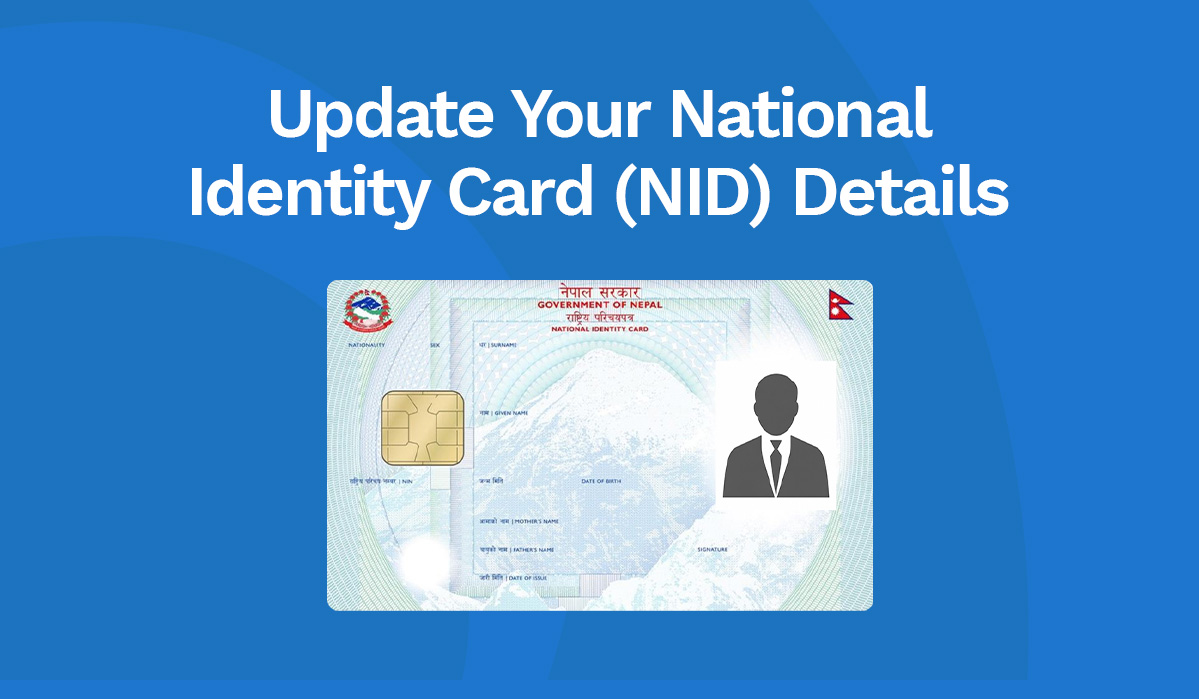
To help keep your account information up to date and meet applicable regulatory requirements, eSewa users are required to update and verify their National Identity (NID) details in line with the directive issued by Nepal Rastra Bank (NRB).
If you already have your NID details, you can submit them through the eSewa app by scanning your NID card or entering your information manually. If you haven't received your NID details yet, you can submit a self-declaration through the app and update your details when they become available.
Whether you have your physical NID card, have your NID details without the card, or are still waiting for your details, here's how you can complete the relevant process on eSewa.
What Is NID Verification?
National Identity (NID) verification is the process of confirming your National Identity details to ensure that your identity information is accurate.
A National Identity Card is a government-issued identity document containing a unique National Identity Number and personal information used to identify an individual.
As part of the applicable regulatory requirements, eSewa users are required to update and verify their NID details. Keeping your information current helps maintain accurate account records and meet the relevant regulatory requirements.
What Are the NID Verification Options on eSewa?
The eSewa app provides different options depending on whether you have received your NID details.
- If you have your NID card: Scan the front and back of your card and submit the required information.
- If you have your NID details but not your physical card: Enter your NID details manually through the app.
- If you don't have your NID details yet: Submit a self-declaration confirming that your details are not currently available and that you will update them when they become available.
- If your NID details are already verified: You generally don't need to submit them again unless the app requests an update or further verification.
How to Update and Verify Your NID Details on eSewa
Follow these steps to update and verify your NID details through the eSewa app.
Step 1: Open the NID Verification Section
- Log in to your eSewa app.
- Go to the More section.
- Select NID Verification.
You'll see the available options based on whether you already have your NID details.
Step 2: Select “I Have My NID Details”
If you have already received your NID details, select “I Have My NID Details” to continue.
You can then choose between scanning your physical NID card and entering your details manually.
Option 1: If You Have Your NID Card
If you have received your physical NID card, follow these steps:
- Tap Start Scanning.
- Scan both the front and back of your NID card.
- Fill in the required details.
- Review the information you have entered.
- Submit your details for verification.
Your submitted information will be checked as part of the verification process. Make sure your details are accurate and clearly readable to help avoid issues during verification.
Option 2: If You Have Your NID Details but Not Your Physical Card
You don't need to wait for your physical NID card if you already have your NID details.
To submit your information manually:
- Select “I Have My NID Details”.
- Tap Enter Details Manually.
- Enter the required information in the respective fields.
- Review your details carefully.
- Submit your information for verification.
Ensure that the information you provide is accurate and matches your official NID records. Your details will be checked as part of the verification process.
What If You Don't Have Your NID Details Yet?
If you haven't received your NID details, you can submit a self-declaration through the eSewa app.
A self-declaration is a statement confirming that your NID details are not currently available and that you will provide them once they become available. It allows you to inform eSewa about your current situation without entering information you don't yet have.
How to Submit a Self-Declaration on eSewa
Follow these steps:
- Open the eSewa app and go to More.
- Select NID Verification.
- Tap “No, I don't have one yet”.
- Read the declaration carefully.
- Tick the confirmation box provided.
- Submit your declaration.
Once submitted, your declaration will be recorded. Remember to update and verify your NID details on eSewa when they become available.
Important: Submitting a self-declaration does not replace the requirement to update your NID details when you receive them.
What If Your NID Details Are Already Verified on eSewa?
If your NID details have already been successfully verified on eSewa, you generally don't need to submit them again.
However, if you receive a notification asking you to update your information or complete further verification, follow the instructions provided in the eSewa app.
If you're unsure about your verification status, check the NID Verification section in the app.
Why Is It Important to Update Your NID Details?
Keeping your identity information up to date helps maintain accurate account records and meet applicable regulatory requirements.
Updating your NID details when they become available also helps ensure that the information associated with your eSewa account remains current and complete.
Frequently Asked Questions (FAQs)
1. Is NID verification required for eSewa users?
eSewa users are required to update and verify their NID details in line with applicable regulatory requirements. Follow the instructions shown in your eSewa app.
2. Can I verify my NID on eSewa without a physical NID card?
Yes. If you already have your NID details but haven't received your physical card, you can select “I Have My NID Details” and enter your information manually.
3. What should I do if I haven't received my NID details?
You can submit a self-declaration through More > NID Verification > “No, I don't have one yet”. Update and verify your details once they become available.
4. Do I need to submit my NID details again if they are already verified?
Generally, no. However, if eSewa requests an update or further verification, follow the instructions provided in the app.
5. How can I update my NID details on eSewa?
Open the eSewa app, go to More > NID Verification, and select the option that applies to you. You can scan your NID card, enter your details manually, or submit a self-declaration if your details are not yet available.
Update Your NID Details on eSewa Today
Keeping your NID details up to date is an important step in maintaining accurate account information.
Whether you have your physical NID card, have received your NID details without the card, or are still waiting for your details, eSewa provides an option to help you complete the relevant process.
Open your eSewa app, go to More > NID Verification, and follow the steps that apply to you.
Have your NID details ready? Update and verify them on eSewa today!